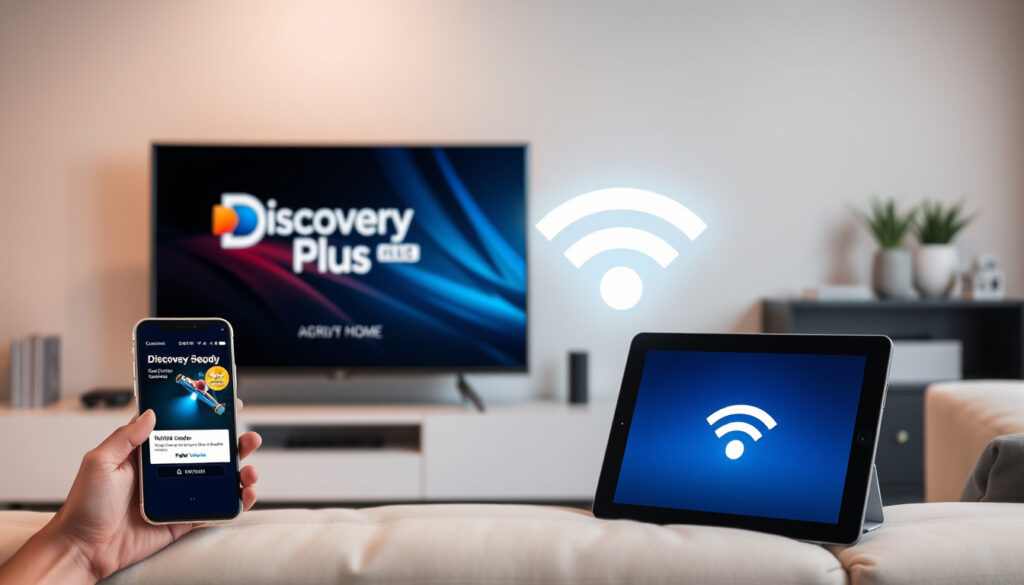
Discovery Plus Link – How to Activate on Any Device
Activating Discovery+ on a television or streaming device requires a short linking process. Instead of typing a username and password on a TV remote, users visit a dedicated webpage, enter a unique code, and sign into their account. The flow is similar to how Netflix, Hulu, or Disney+ handle TV activation, and it works across most major platforms.
Two web addresses power this process: auth.discoveryplus.com/link and the older auth.go.discovery.com/link. Both accomplish the same goal, but which one a user sees depends on the device and the region. Understanding the difference can save time and reduce frustration, especially when a code does not seem to work.
The Discovery+ link activation flow covers finding the correct URL to troubleshooting common errors. It draws on official support documentation from Discovery+ and Warner Bros. Discovery, and it is designed to work for Smart TVs, Roku, Fire TV, Apple TV, Android TV, and Sky products.
How to Activate Discovery+ Using the Link
Activation starts with the Discovery+ app on your TV or streaming device. The app displays a short numeric code that must be entered on a separate device — typically a phone, tablet, or computer. The primary URL for this step is auth.discoveryplus.com/link, though some devices may redirect users to the legacy domain.
What Is the Discovery+ Link?
The official URL where you enter the activation code displayed on your TV. It is owned and operated by Warner Bros. Discovery.
Activate on TV
Open the Discovery+ app, note the six-digit code, visit the link on another device, and sign in. The TV refreshes automatically.
Activate on Mobile App
On a phone or tablet, you can either follow the in-app link or go directly to discoveryplus.com/signin and sign in with your credentials.
Need Help?
For a detailed walkthrough, see the Discovery+ TV activation and sign-in guide. If the link page is blank or the code expires, refresh the page, generate a fresh code from the TV app, and check your internet connection.
Key insights about the activation process:
- The primary activation URL is auth.discoveryplus.com/link, but some devices — especially Sky products — redirect to go.discovery.com/link.
- A Discovery+ subscription or active free trial is required to complete activation.
- Activation codes are typically valid for 10 to 15 minutes. If the code expires, close and reopen the TV app to generate a new one.
- Multiple devices can be linked to the same Discovery+ account without re-entering payment details.
- For Sky users, the process uses a dedicated Sky-specific menu and may appear under the Discovery+ app rather than a separate link page.
| Fact | Value |
|---|---|
| Official activation URL | https://auth.discoveryplus.com/link |
| Alternative URL (legacy/devices) | https://auth.go.discovery.com/link |
| Code input method | Type the code shown on your TV into the link page |
| Code validity | Usually 10–15 minutes |
| Supported devices | Smart TVs (Samsung, LG, etc.), Roku, Fire TV, Apple TV, Sky Q/Glass/Stream, Android TV, gaming consoles |
| Account required | Yes (email/password or TV provider sign-in) |
How to Sign In to Discovery+ via discoveryplus.com/link
Signing in through the link page is straightforward, but there are subtle differences depending on whether you already have an account or plan to use a TV provider. The official Discovery+ support article on sign-in outlines two main paths.
Signing in with an existing Discovery+ account
If you already have a Discovery+ account, open the link page on your phone or computer, enter your email address and password, and then type the six-digit code from your TV. The system links the device to your account immediately.
Signing in with a TV provider
Some users access Discovery+ through a cable, satellite, or internet TV provider. In that case, select the TV provider option on the sign-in page, choose your provider from the list, and log in with your provider credentials. The activation code still needs to be entered after that step.
Entering the code from your TV screen
The code appears as a six-character string, sometimes with a hyphen in the middle. Type it exactly as displayed. The link page accepts only active, unexpired codes. If the code is rejected, return to the TV app and refresh to get a new one.
If you are using the Discovery+ app on a phone or tablet, you may see a link or QR code inside the app itself. Tapping that link can take you directly to the sign-in flow without manually entering the URL. This works the same way on both iOS and Android.
How to Enter Your Discovery+ TV Activation Code
The code entry step is the same across nearly all devices, but the location of the code and the exact URL can vary slightly. Understanding where to look and what to expect prevents unnecessary retries.
Where the code appears on different devices
On a Smart TV, Roku, Fire TV, or Apple TV, the code displays on a full screen immediately after selecting “Sign In” or “Activate.” On Sky Q, Sky Glass, and Sky Stream, the code appears within the Discovery+ app itself. Gaming consoles such as PlayStation and Xbox follow the same pattern — the code is shown on the TV screen after launching the app.
Entering the code on the link page
Go to auth.discoveryplus.com/link or the legacy auth.go.discovery.com/link on a separate device. Sign into your Discovery+ account first. Then type the code exactly as shown, including any hyphens. Press Submit or Activate.
Can the same code be used on multiple devices?
No. Each device generates its own unique code. You must repeat the activation process for every TV, streaming stick, or console you want to link to your account.
How to Link Discovery+ on Sky Q, Sky Glass, or Sky Stream
Sky customers follow the same basic activation flow, but with a few important differences. The Sky platform uses a dedicated Discovery+ app, and the activation link may point to the legacy domain rather than the newer one.
Which URL does Sky use?
According to the Discovery+ support article for Sky offers, Sky customers go to discoveryplus.com/link on their phone or computer, sign in, and enter the six-digit code from the TV. Some Sky boxes may display a reference to go.discovery.com/link instead. Both URLs work for Sky activation.
What if the Sky box shows a different URL?
If your Sky Q, Sky Glass, or Sky Stream screen mentions a URL that is not discoveryplus.com/link, use the URL shown on the screen. The system is designed to direct you to the correct authentication page for that device. In most cases, it will redirect to the appropriate domain.
How to sign out of Discovery+ on Sky
Signing out on Sky devices is done through the Discovery+ app settings, not through the link page. Open the app, go to the account or settings menu, and select Sign Out. The device will be unlinked and will require a new activation code the next time you sign in.
If you have a Sky Q, Sky Glass, or Sky Stream offer that includes Discovery+, make sure you sign in with the same email address associated with your Sky account. Using a different email may prevent the offer from applying correctly.
Sky devices, like all others, generate codes that expire within 10 to 15 minutes. If you see “Your link has expired” on the activation page, close the Discovery+ app on your Sky box, reopen it, and use the new code that appears.
What Is the Step-by-Step Process for Activating Discovery+?
The activation flow follows a consistent sequence regardless of the device. Below are the six steps from opening the app to watching content.
- Open the Discovery+ app on your TV or device. If the app is not installed, download it from your device’s app store. Launch the app and select Sign In or Activate.
- A code appears on the TV screen. The code is six characters long and may include a hyphen. Keep this screen visible while you complete the next steps.
- On a phone, tablet, or computer, go to auth.discoveryplus.com/link. Some devices may redirect to go.discovery.com/link. Both URLs work for this step.
- Sign in to your Discovery+ account. Use your email and password, or choose the TV provider option. If you do not have an account, you can create one on the Discovery+ homepage.
- Enter the six-digit code from step 2. Type it exactly as shown. Press Activate or Submit.
- Wait for confirmation. The TV screen refreshes automatically. You can now browse and watch content on that device.
What Is Known and What Remains Unclear About Discovery+ Activation?
Most of the activation process is well documented, but a few details are not fully confirmed by official sources. The table below separates established facts from areas that still carry some uncertainty.
| Established information | Information that remains unclear |
|---|---|
| auth.discoveryplus.com/link is the official activation link for most devices. | Whether go.discovery.com/link will continue to work after Discovery+ fully migrates to the new URL. |
| You must be signed into a Discovery+ account to enter a code. | Exact code expiration time may vary by device manufacturer. |
| Codes expire after a short time; regenerate if needed. | Some regional differences (e.g., UK vs. US) may present slightly different flows. |
| Linking is device-specific; each device requires its own activation. |
Why Are There Two Different Discovery+ Activation URLs?
Discovery+ launched in 2021 and initially used go.discovery.com as its authentication domain. That URL was inherited from Discovery’s earlier streaming services. Over time, the company consolidated its brand under the discoveryplus.com domain, leading to a new activation page at auth.discoveryplus.com/link.
The older URL — auth.go.discovery.com/link — remains active because many devices, especially those from partners like Sky, were manufactured or configured before the migration. Rather than breaking compatibility, Discovery kept both URLs functional. Newer devices typically redirect to the new domain, but legacy hardware may still point to the old one.
This dual-URL setup is not unique to Discovery+. Other streaming services have maintained parallel authentication endpoints during brand transitions. The code-based linking system itself is standard across the industry: Netflix, Hulu, and Amazon Prime Video all use a similar flow for TV activation.
Where Can I Find Official Discovery+ Activation Guidance?
Discovery+ maintains a support knowledge base that covers sign-in, activation, and account management. The most relevant articles are the sign-in guide and the Sky-specific activation page. Both are hosted on the official Discovery+ support domain and are updated regularly.
“Then, tap the link that appears on your phone (iPhone or Android QR steps). -or-; On your phone or computer, go to discoveryplus.com/signin. Then, enter the…”
— Discovery+ Support, “Sign in to discovery+”
The activation link page itself — auth.discoveryplus.com/link — is minimal by design. It contains a single input field for the code and a submit button. No supporting instructions are shown on that page, which is why consulting the support articles or a comprehensive guide like this one can be helpful.
For account management after activation, the Discovery+ Account & Sign-In support category covers profiles, parental controls, and subscription changes.
What Should I Remember About Discovery+ Link Activation?
The Discovery+ link activation process is built around a simple code-entry system that works across virtually all modern streaming devices. Knowing the correct URL — auth.discoveryplus.com/link — and understanding that a legacy alternative exists can prevent most common issues. Codes are short-lived, each device requires its own activation, and signing out is done through the app, not the link page. If you encounter a code that will not work, the How to fix Discovery+ activation code not working article covers the most common fixes.
Frequently Asked Questions
What is go.discovery.com/link?
It is an older, still functional authentication URL used by some devices, especially Sky boxes. It works the same way as auth.discoveryplus.com/link.
Can I use the same activation code on multiple devices?
No. Each device generates its own unique code. You must repeat the activation process for each new device you want to link.
Do I need a credit card to activate?
No. Activation only requires a Discovery+ account. You can sign up for a free trial or use an existing subscription.
What if I see “Your link has expired”?
Go back to the TV app, close and reopen it to generate a new code, then enter the fresh code on the link page within 10 minutes.
Is the link secure?
Yes. Both auth.discoveryplus.com/link and go.discovery.com/link are official secure HTTPS pages owned by Warner Bros. Discovery.
What devices support Discovery+ link activation?
Smart TVs (Samsung, LG, etc.), Roku, Fire TV, Apple TV, Sky Q/Glass/Stream, Android TV, and gaming consoles all support the code-based activation flow.
How long is the activation code valid?
Typically 10 to 15 minutes. If the code expires, restart the Discovery+ app on your TV to generate a new one.
Can I activate Discovery+ without a TV provider?
Yes. You can subscribe directly to Discovery+ with an email and password. No TV provider is required.
Why does the link page show a blank screen?
Try a different browser or a private/incognito window. Also confirm that your internet connection is stable and that you are using the correct URL.
How do I unlink a device from my Discovery+ account?
Sign out of the Discovery+ app on that device. The device will be unlinked and will require a new activation code the next time you sign in.
More related posts
 Emma Jones – Presenter, Singer, CBE and Poet Guide
 Ralph Lauren Polo Shirt – UK Sizes, Fits and Deals Guide
 Quick Easy Dinner Ideas – 30 Recipes Ready in 30 Minutes or Less
 Is a Car Taxed – Check UK Status on GOV.UK
 Big Trouble in Little China – Guide to Cast, Plot and Streaming
 Universal Credit 2025 Boost Details – Rates & Eligibility
 How Far Did I Run – Best Free Tools for Accurate Measurement
 Huawei Pura 80 Ultra – Specs, Camera Test and Price Guide
